
Status: EXPERIMENTAL – optional, not required.
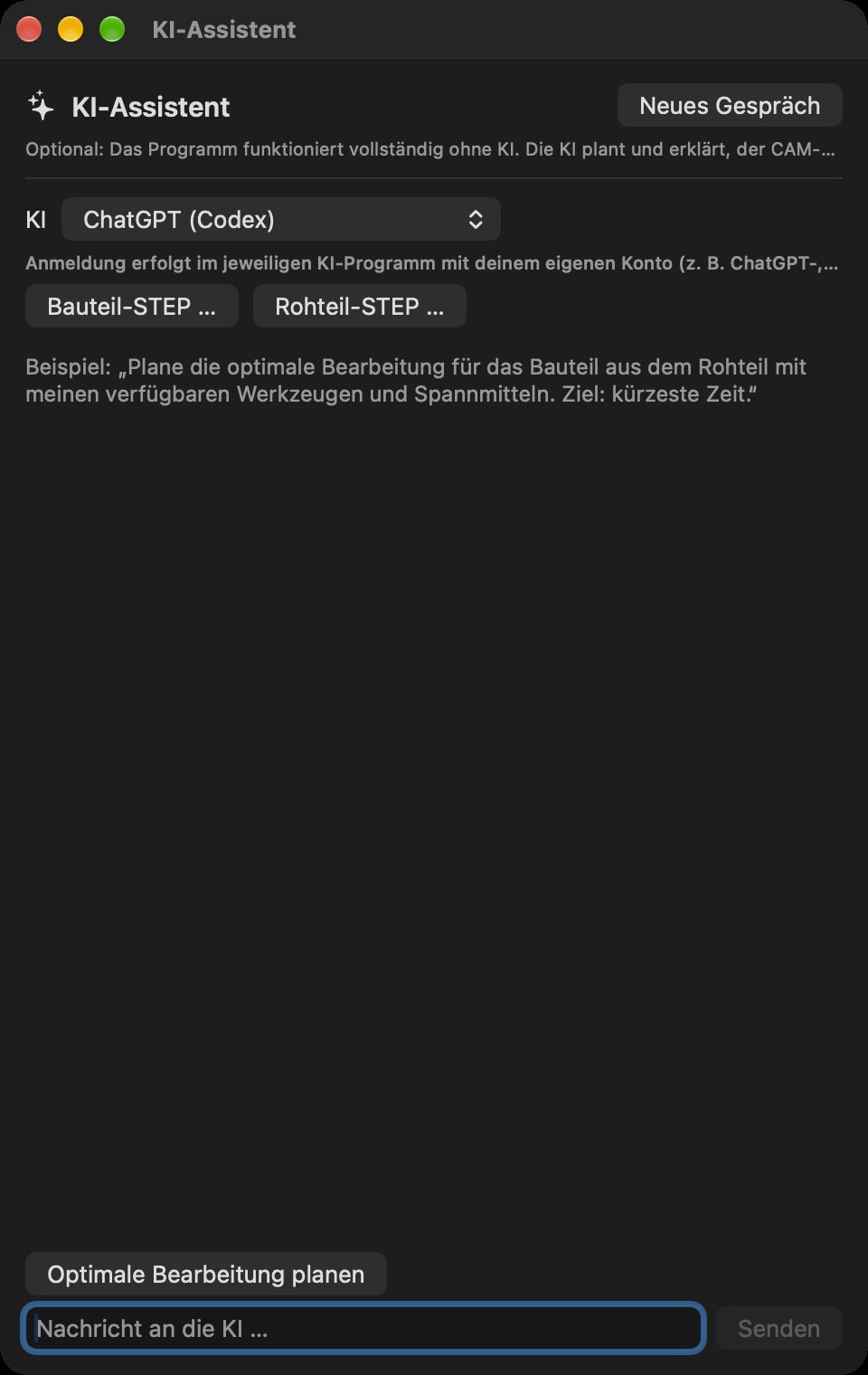
Open it with ⌥⌘K or the sparkle icon at the top. The assistant can work with your own account for ChatGPT (Codex), Claude (Claude Code), Gemini, or with a Claude API key.
Using the AI Assistant window:
- Under AI, select the provider (e.g. “ChatGPT (Codex)”). Sign in through the respective AI application using your own account; if you are not signed in, the window displays a sign-in button.
- Optionally select Part STEP … and Stock STEP … (for the stock, the enclosing rectangular block is used).
- Click Plan optimal machining or write your own message, e.g. “Plan the optimal machining process for the part from the stock using my available tools and fixtures. Goal: shortest time.”
- New conversation starts again from the beginning.
How it works:
- The AI plans and explains; the application calculates and checks. The AI does not generate its own toolpaths or G-code.
- It uses only cutters that you have confirmed as available, and the fixtures you have entered.
- Candidates (K1, K2 …) are fully calculated and compared by time, tool changes and remaining material. You can view a candidate in the workspace.
- A candidate is adopted only after your confirmation in the normal confirmation dialog.
Privacy: Dimensions, recognized features, tool data and metrics are transmitted – not CAD files. Before first use, you confirm a notice. Your AI account's terms apply (including possible costs and usage limits).
Without an AI account, during an outage or when your usage limit is reached, you can continue working manually as usual.