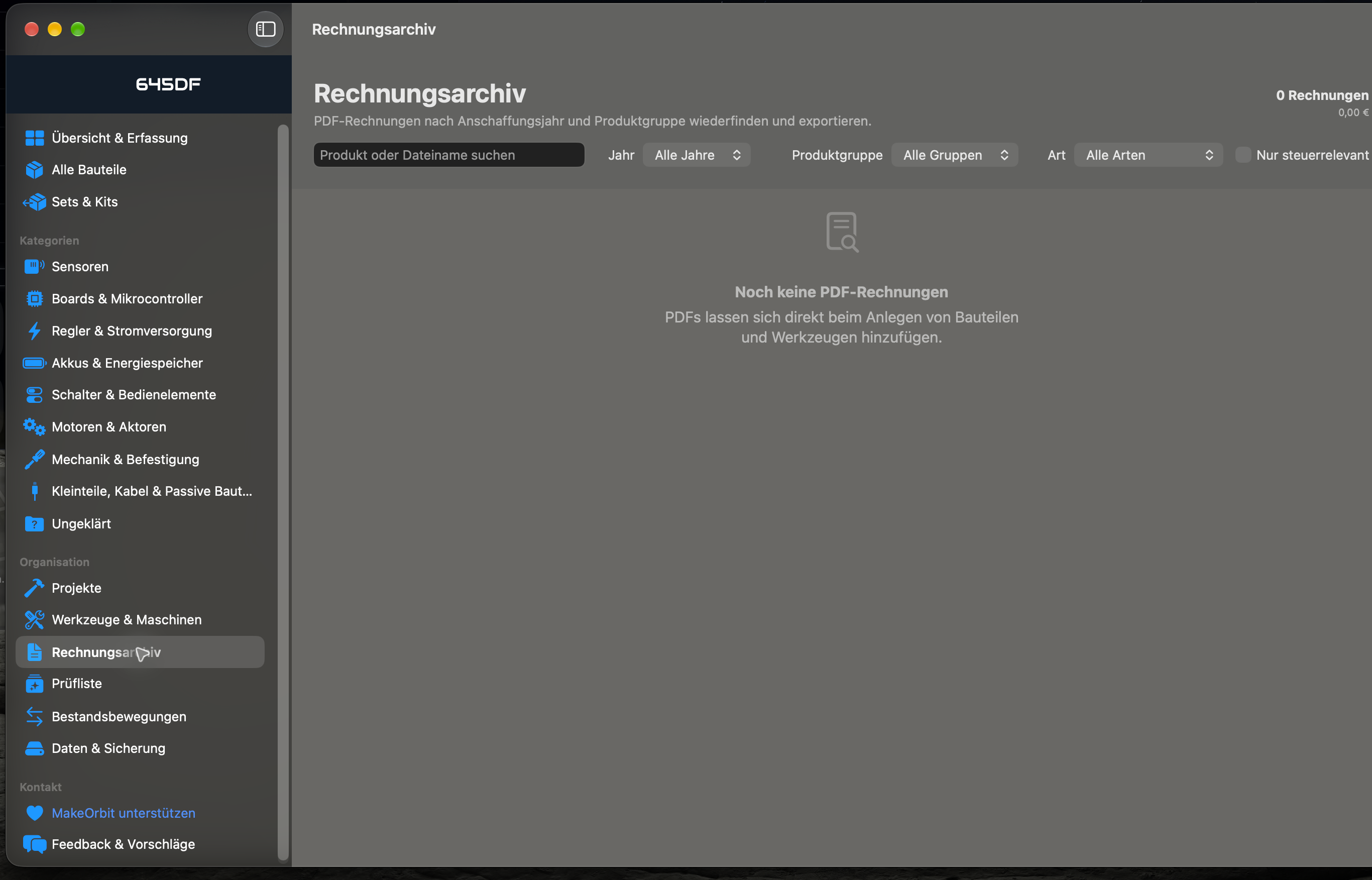
Based on project documentation; availability and labels depend on your installed version.
Complete English guide. Screenshots show the German interface; their captions are translated.
Getting started
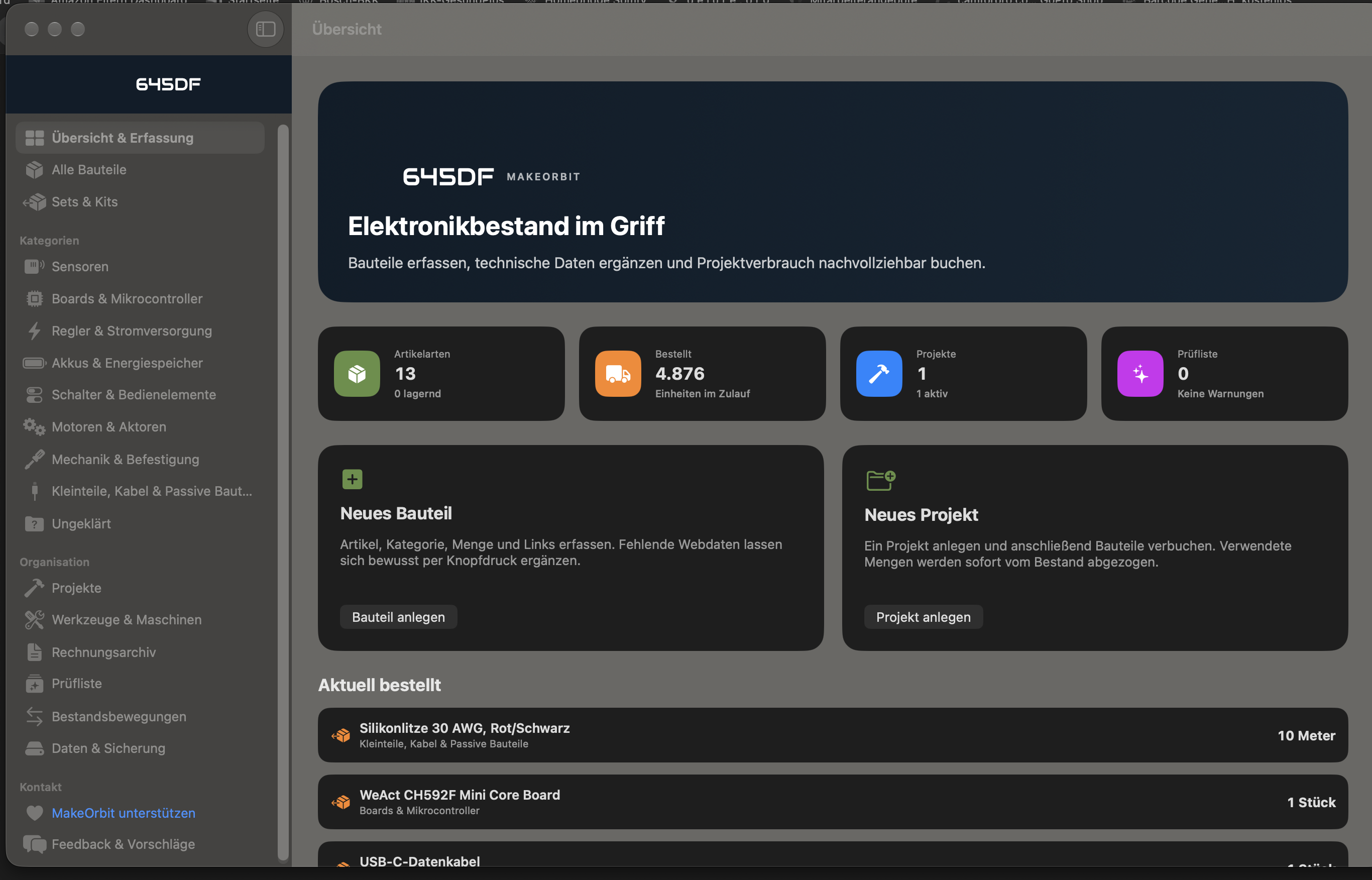
MakeOrbit brings components, materials, tools, machines, invoices and projects together locally on your Mac. The project documentation specifies macOS 15 or newer on Apple Silicon and Intel. Individual features and labels depend on the installed version.
Start with Create component and a few real items.
Record category, manufacturer, quantity, purchase details and storage location.
Check unknown classifications in the review list before moving them into inventory.
Create a small project and try the workflow before entering your whole inventory.
German and English are available in Settings. English control names in this guide are descriptive translations; screenshots show the German interface.
Components and materials
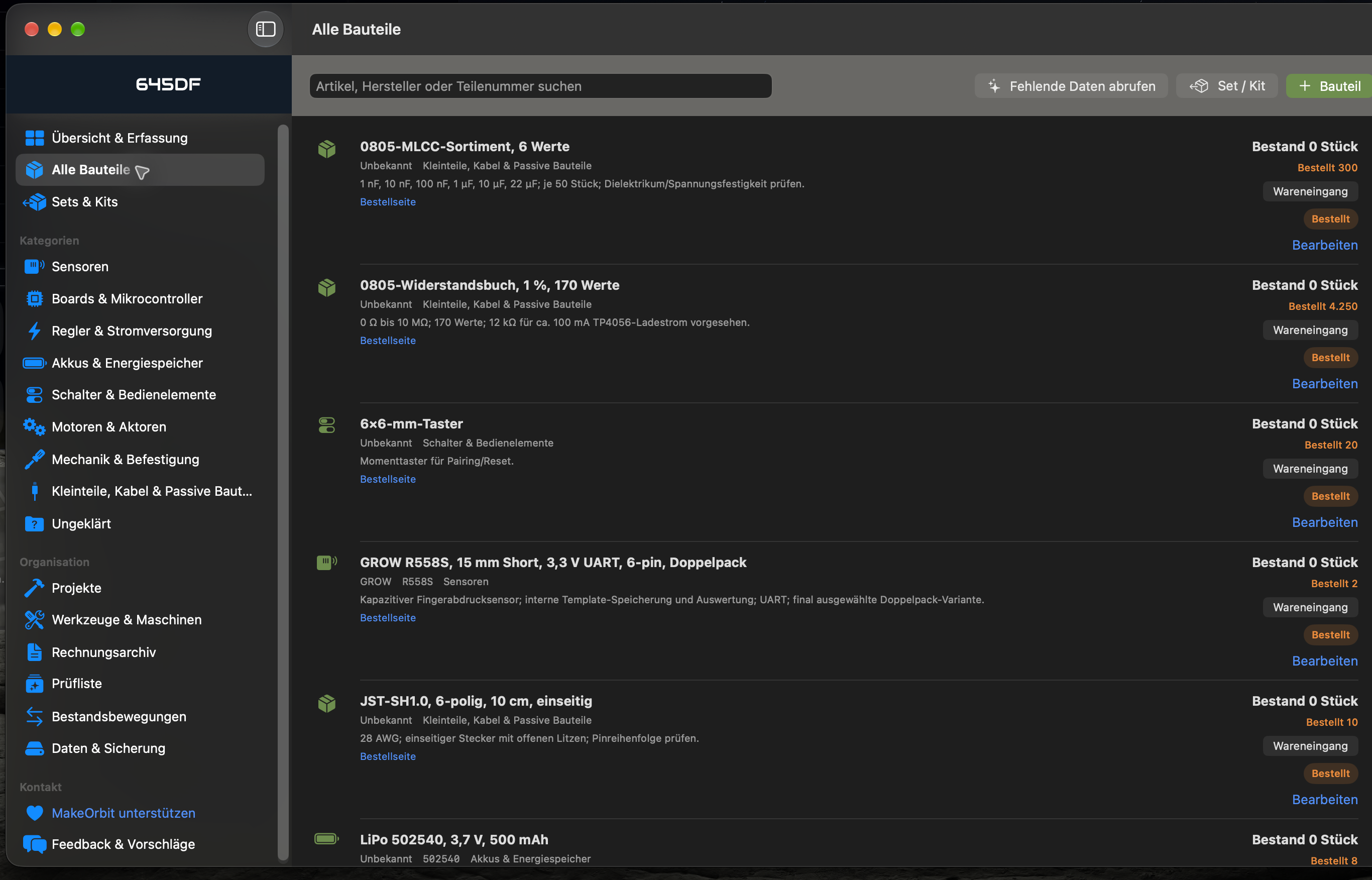
Available stock, ordered quantities and minimum stock are separate fields. Manufacturer, part number, technical details and storage location help you find items.
Materials such as filament, wood, acrylic, metal, sheets, tubes, profiles, blocks and resins use weight, dimensions or remaining quantities as appropriate.
Enter actual quantities with suitable units.
Keep purchase prices separate from newly retrieved current prices.
Check remaining material before planning a project.
Review storage locations and minimum stock regularly.
Orders, goods receipt and kits
An order is not yet available inventory.
Record the order and, where available, delivery date, carrier and tracking number.
Compare the delivery against the ordered quantity.
Confirm only the quantities actually received using Goods receipt.
Check kits as individually usable items while preserving their set origin and shared invoice.
Automatic delivery tracking is documented as prepared but disabled.
Product data and documents
Enter the product or manufacturer URL under Order page.
Select Retrieve technical data.
Review and correct detected information.
Save the item.
Retrieval assists data entry; it does not certify technical accuracy. Compare values against the actual part and manufacturer datasheet.
Datasheets and STEP, STP and STL files can be archived locally. They remain exportable when the associated item is archived or retired.
Projects and inventory movements
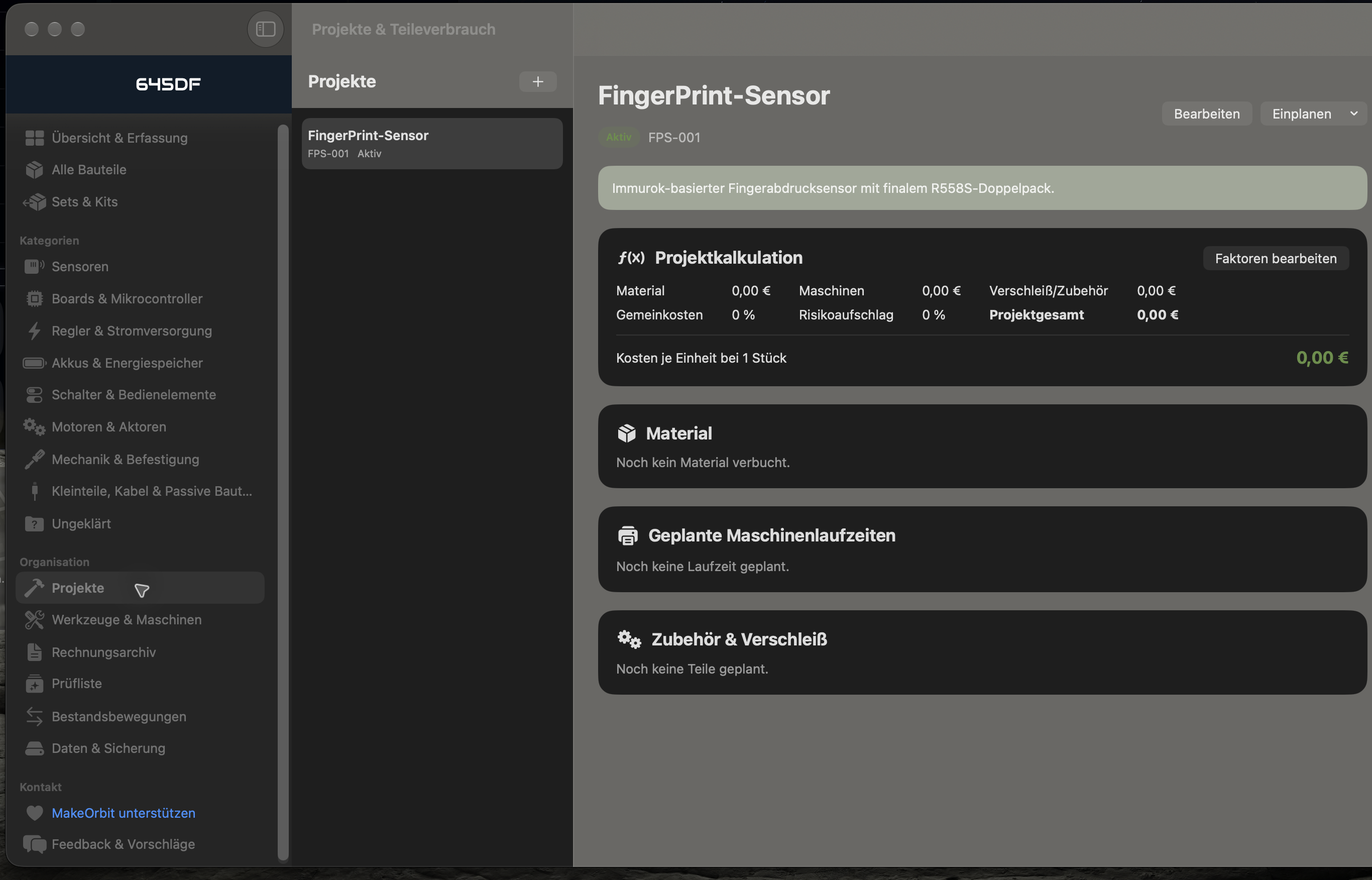
Select Create project.
Open Use component within the project.
Enter and book the actual quantity.
Check remaining stock and the journal entry.
Return unused items with the return action.
Booking usage reduces inventory immediately; returning items restores it. Distinguish actual consumption from planning estimates.
Tools and machines
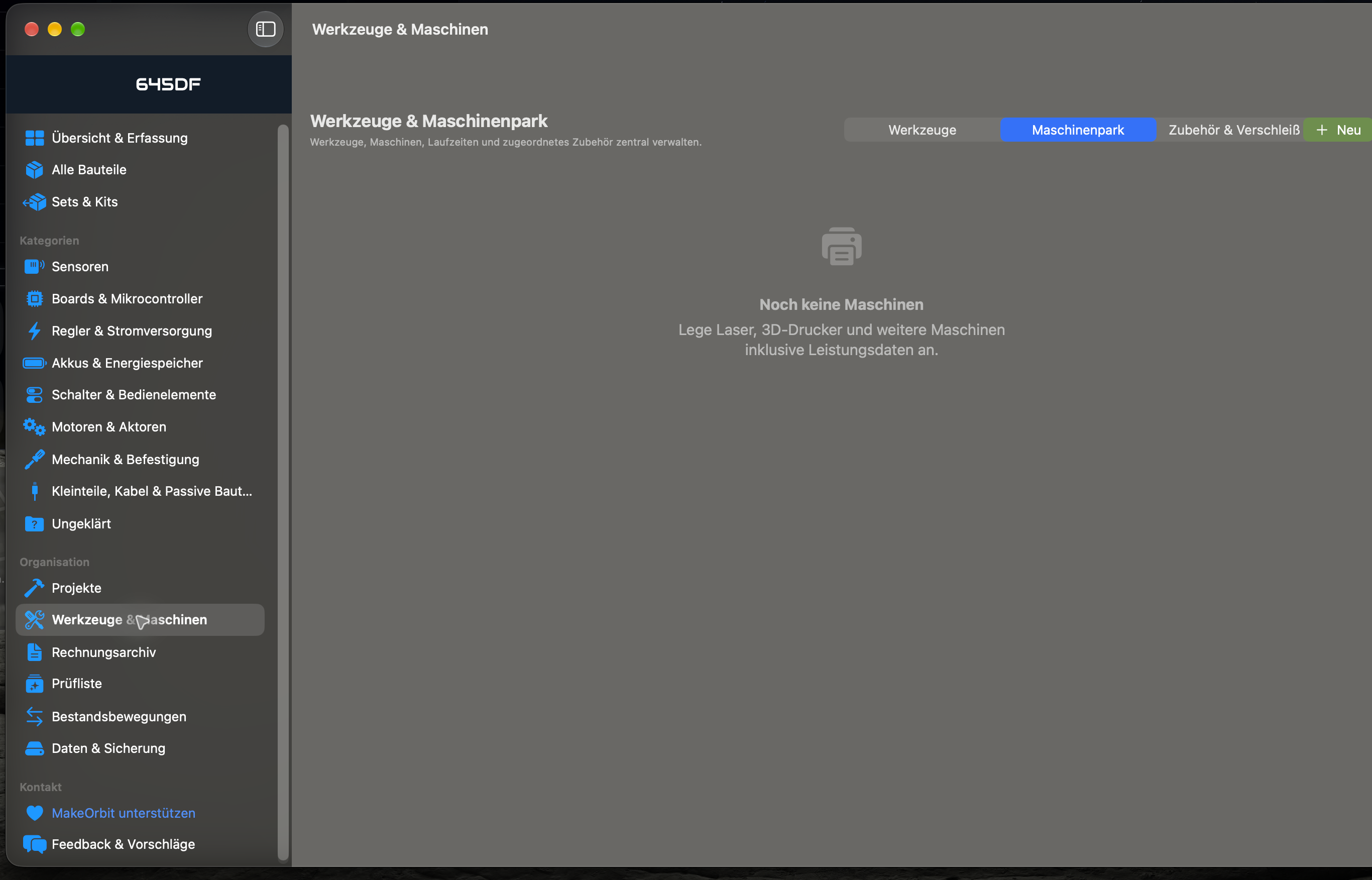
Tools & machines contains tools, the machine inventory, accessories and wear parts.
Record purchase date, price, serial number, warranty, storage location and manufacturer link. Use Edit to update details or add invoices.
For machines, maintain power consumption, hourly rate, maintenance costs and electricity price. Record runtime manually and assign it to a project when appropriate. Accessories and wear parts stay linked to the machine. Retirement preserves status, date and reason.
Understand project costs
Costing combines booked materials with planned or recorded machine time, accessories and wear.
Check quantities and purchase prices.
Add machine time and rates, including electricity and maintenance.
Open Edit factors.
Set overhead, risk allowance and output quantity.
Review the total and per-unit cost.
Results depend on your inputs. Planned CAM times are not measured runtimes.
Invoices and backups
Select an original document under PDF invoice or drag it onto the invoice area. The PDF is stored locally. Email attachment dragging requires the mail app to provide an actual PDF file.
In the Invoice archive, filter by year, product group, item type and tax marker, or search by product/file name. Export PDF creates an independent file. The tax marker is organizational, not a tax assessment.
Use Data & backup to create a JSON backup including invoices. CSV supports working with the component table and is not a full backup. Back up before major changes or moving computers.
Designs and Fusion 360
The Data area collects STEP, STL, 3MF and NC files with format, project and text filters.
The documented Fusion 360 add-in exports selected bodies to existing MakeOrbit projects or projects created in the add-in. Documented formats are STEP, 3MF, binary STL and ASCII STL. Existing Fusion NC programs can be transferred with saved postprocessor settings.
Availability depends on version and entitlement. Archived NC files are not automatically executed. Check archive contents and confidentiality before sharing.
Work with CNC Studio
MakeOrbit remains the authoritative manager for shared tools and materials. The optional connection runs locally on the same Mac. The public CNC beta has not started.
Open both entitled applications if you already have access to an authorized development build.
In MakeOrbit's Fusion 360 area, enable local data exchange with MakeOrbit CNC Studio.
Transfer the separate pairing key only to CNC Studio's secure field.
Synchronize and review the transferred records.
Find archived CNC projects under Data or the associated project.
New records are not inventory movements. Maintain existing shared records in MakeOrbit. Archiving does not automatically book material or machine costs; CAM times remain estimates.
Never expose keys in screenshots or support posts. CNC pairing guide.